






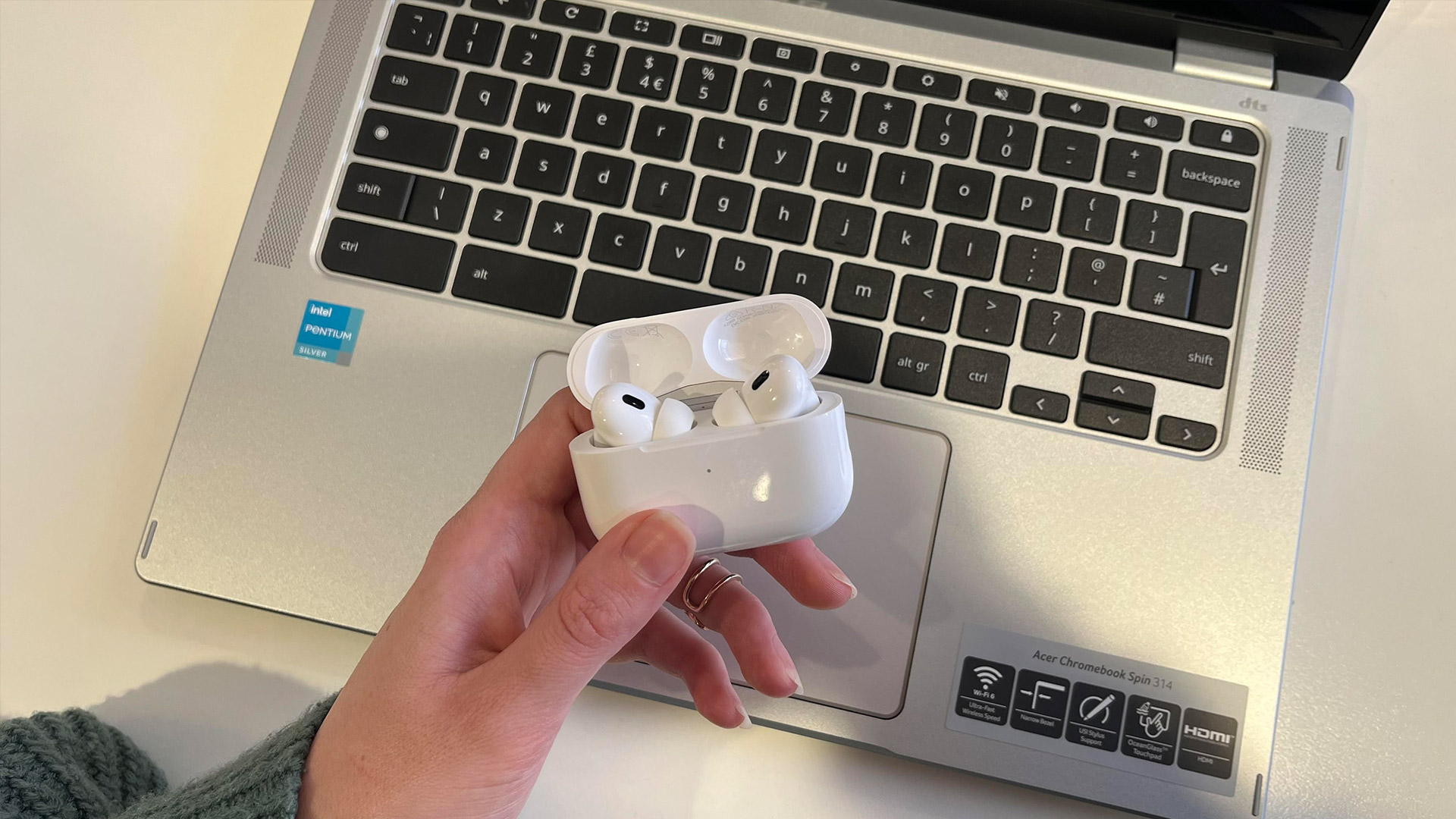
how to connect airpods to laptop AirPods. have become a favorite choice among wireless earbuds because of their excellent sound quality, easy connectivity, and seamless pairing with Apple devices. But what if you want to use them with your laptop? Whether you own a Windows 10/11 laptop or a MacBook, you can easily connect your AirPods and enjoy wireless audio while working, attending meetings, streaming, or gaming.
In this step-by-step guide, you’ll learn how to connect AirPods to a laptop, how to fix common connection problems, and tips to improve your overall experience.
Why Use AirPods with a Laptop?
If you already use AirPods with your iPhone, iPad, or Apple Watch, you might wonder why you should connect them to your laptop. Here are some top reasons:
- Wireless freedom without messy cables.
- Perfect for online meetings such as Zoom, Microsoft Teams, Google Meet, and Skype.
- High-quality sound for streaming platforms like Netflix, Spotify, and YouTube.
- Built-in microphone that works well for video calls and voice recording.
- Works with both Windows laptops and MacBooks.

How to Connect AirPods to Laptop (MacBook/macOS)
If you own a MacBook, the process is extremely simple—especially if your AirPods are already paired with your iPhone under the same iCloud account. They often appear automatically in your Mac’s Bluetooth settings.
Step-by-Step Guide: Connect AirPods to MacBook
- Open Bluetooth Settings
- Click the Apple Menu () in the top-left corner.
- Go to System Settings (or System Preferences on older macOS).
- Turn On Bluetooth
- Select Bluetooth and make sure it is enabled.
- Put AirPods in Pairing Mode
- Place AirPods inside the charging case.
- Open the lid.
- Press and hold the setup button at the back until the LED light flashes white.
- Pair AirPods with MacBook
- On your Mac’s Bluetooth list, select your AirPods.
- Click Connect.
- Confirm Audio Output
- Go to the sound icon in the menu bar.
- Choose AirPods as your audio device.
Your AirPods are now ready to use with your MacBook.
How to Connect AirPods to Laptop (Windows 10/11)
Unlike Apple’s seamless ecosystem, pairing AirPods with Windows laptops requires manual setup. But once paired, they work just like any other Bluetooth earbuds.
Step-by-Step Guide: Connect AirPods to Windows Laptop
- Enable Bluetooth on Windows
- Press Windows Key + I to open Settings.
- Go to Devices > Bluetooth & Devices.
- Switch Bluetooth ON.
- Activate Pairing Mode on AirPods
- Place AirPods in the charging case.
- Open the lid.
- Press and hold the setup button until the LED flashes white.
- Add a New Device
- In Windows settings, click Add Device.
- Select Bluetooth.
- Select Your AirPods
- Wait for your laptop to find AirPods.
- Click on them when they appear.
- Confirm Connection
- You will see “Your device is ready to go.”
- Test by playing audio.
Your AirPods are now connected to your Windows laptop.
Fixing AirPods Not Connecting to Laptop (Troubleshooting)
Sometimes AirPods do not connect smoothly. Here are solutions for common issues:
1. AirPods Not Showing Up in Bluetooth
- Make sure AirPods are in pairing mode (light blinking white).
- Keep AirPods close to the laptop.
- Restart laptop Bluetooth.
2. Poor Sound Quality on Windows
Windows sometimes defaults to “Hands-Free” mode, which lowers quality.
- Right-click the speaker icon → go to Sound Settings.
- Select Headphones (AirPods Stereo) for high-quality sound.
3. One AirPod Not Working
- Put both AirPods back in the case and reconnect.
- Charge AirPods properly.
4. AirPods Keep Disconnecting
- Remove AirPods from Bluetooth list and re-pair.
- Update Bluetooth drivers on Windows.
- Keep laptop close to AirPods to avoid interference.
Tips for the Best AirPods Experience on Laptop
- Switch devices easily. On Windows, disconnect from phone first to avoid conflicts.
- Check microphone settings. In meetings, ensure AirPods mic is selected as input.
- Keep software updated. Update macOS, Windows, and AirPods firmware.
- Charge regularly to prevent sudden disconnections during meetings.
- Use Noise Cancellation (AirPods Pro & Max) to block background noise.
Frequently Asked Questions (FAQ)
1. How to connect AirPods to laptop Windows 10?
Go to Settings > Devices > Bluetooth, turn on Bluetooth, put AirPods in pairing mode, and select them from the list.
2. How to connect AirPods to laptop Windows 11?
The process is the same as Windows 10: open Bluetooth settings, click Add Device, select AirPods, and confirm.
3. Can I connect AirPods to both phone and laptop?
Yes, but they only work with one device at a time. Apple devices switch automatically; Windows requires manual switching.
4. Why is AirPods mic not working on laptop?
Check Input Device settings in Windows or Mac and select AirPods Microphone.
5. Do AirPods lose sound quality on Windows laptops?
Not significantly, but you lose Apple-exclusive features like Spatial Audio and Automatic Ear Detection.
6. Do AirPods work with older laptops without Bluetooth?
Yes, but you will need a Bluetooth USB dongle.
Final Thoughts
Learning how to connect airpods to laptop is simple once you know the steps. Whether you are using a Windows 10/11 laptop or a MacBook, the pairing process only takes a few moments. Once connected, you can enjoy wireless convenience, excellent audio quality, and a reliable microphone for calls and meetings.
If you run into connection problems, most issues can be fixed by resetting your AirPods or adjusting your laptop’s Bluetooth settings.
With proper setup, AirPods deliver clear sound, smooth microphone performance, and complete wireless freedom on any laptop.














+ There are no comments
Add yours